Eternal Pro integrates directly with Trustate
- Send a client's Matter, Contacts, and full estate Inventory to Trustate in one step
- Assets and liabilities transfer as structured data, not as documents — no re-typing
- Debts, mortgages, and loan/HELOC accounts arrive as Liabilities, separate from Assets
- Re-exporting the same Matter updates the existing Trustate record instead of creating a duplicate
- Export is per client, and always initiated by you
Connecting to Trustate
First, create your access token inside Trustate:
- Login to Trustate and open Account → Access Tokens
- Create a token with Permission: All and Scope: Global Data Integration
- Copy both the Public Token and the Private Key
- Do this before you leave the page — Trustate shows the Private Key only once
Next, add them to Eternal Pro:
- Login to your Eternal Dashboard as a Super Admin user
- Hover on Integrations in the left nav menu, then click Trustate
- Paste your Public Token and Private Key into the two fields
- Click the Connect to Trustate button
- Your credentials are checked against Trustate straight away. If either value is wrong, nothing is saved and you can simply try again
- The integration Status will now say Connected ✅
Trustate has no "Grant Access" login screen, so you are never redirected away from Eternal Pro. Your Private Key is stored encrypted and is never displayed again, not even to you.
Exporting Client Data To Trustate
In your Client Dashboard Home:
- Find the Client you want to export, and click the Export
 icon
icon - This will open the Export window. Click the Trustate square.
- There is nothing to select. Trustate receives structured data rather than documents, so the document and file format options do not appear
- Click Export
- Eternal Pro confirms whether the Trustate Matter was created or updated
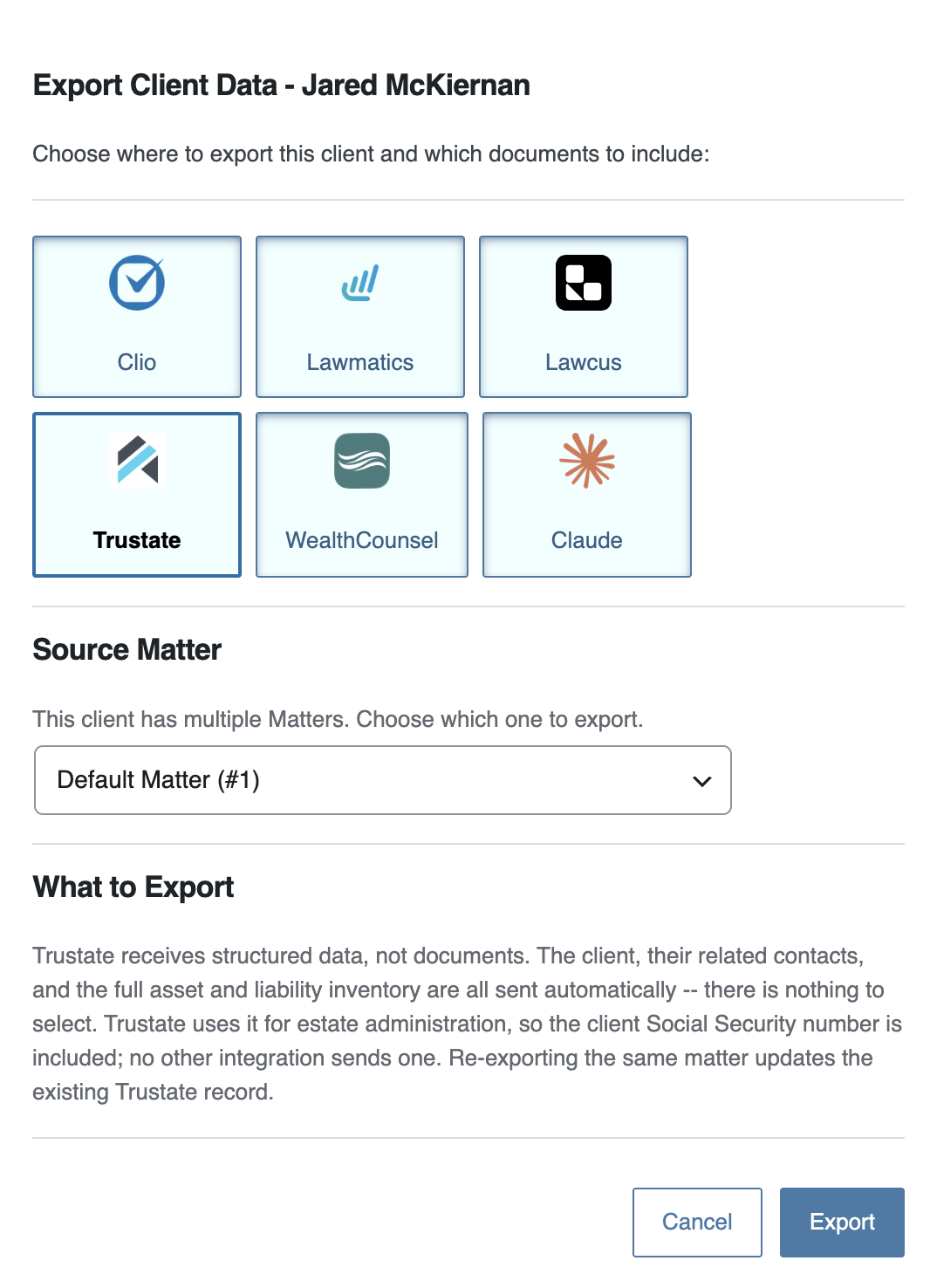
What Gets Sent
Every export sends all of the following automatically:
- The Matter — created in Trustate as an Estate Planning / Funding matter, named after your client
- The Client — name, email, phone, date of birth, address, and marital status
- Related Contacts — spouse, beneficiaries, and other people recorded on the estate, each with their relationship. A spouse is also attached to the Matter itself so Trustate's spousal logic applies
- Assets — bank and investment accounts, real estate, businesses, life insurance, cryptocurrency, intellectual property, receivables, and tangible personal property, each with its value and how it is owned
- Liabilities — the Debts & Liabilities you have recorded, plus any mortgage held against a property and any loan or HELOC account, listed as debts rather than as assets
Asset values are converted to US Dollars before sending, including cryptocurrency, so Trustate receives one consistent currency. A mortgaged property is sent at its full value with the mortgage listed separately as a liability, rather than netted off.
Please note: Trustate uses the Social Security number for estate administration, so the client's SSN is included in the export. Trustate is the only integration that receives one.
Uploaded files and documents are not sent. Trustate has no endpoint that accepts them, so anything your client has attached to an asset stays in Eternal Pro.
Re-Exporting A Client
You can export the same client as often as you like. Eternal Pro tags each export with the client and Matter it came from, so Trustate recognises it and updates the record already there rather than adding a second copy. Each Matter you hold for a client is tracked separately and becomes its own Trustate record.
Disconnecting Trustate
- Hover on Integrations in the left nav menu, then click Trustate
- Click the Revoke Connection button
- Your stored credentials are deleted. Data already sent to Trustate is unaffected. To reconnect later you will need to generate a new token in Trustate, because the Private Key cannot be retrieved.
 How to import clients from Lawmatics using a Zapier webhook ?
 How to import clients from MyCase using a webhook ?
 How to sync client intake data to Lawcus?


 united states
