How to enable automatic sync to Lawmatics?

Eternal Pro integrates and can sync directly with Lawmatics.

It's easy to enable automatic Client data synchronization:

  1. Login to your Eternal Dashboard as a Super Admin user
  2. Hover on  Integrations  in the left nav menu, then click Lawmatics
  3. Click the  Connect to Lawmatics  button
  4. Login to Lawmatics and click  Grant Access 
  5. You will be returned to the Eternal Dashboard
  6. The integration Status will now say Connected ✅
  7. Click the checkbox next to Automatically export Client data to Lawmatics
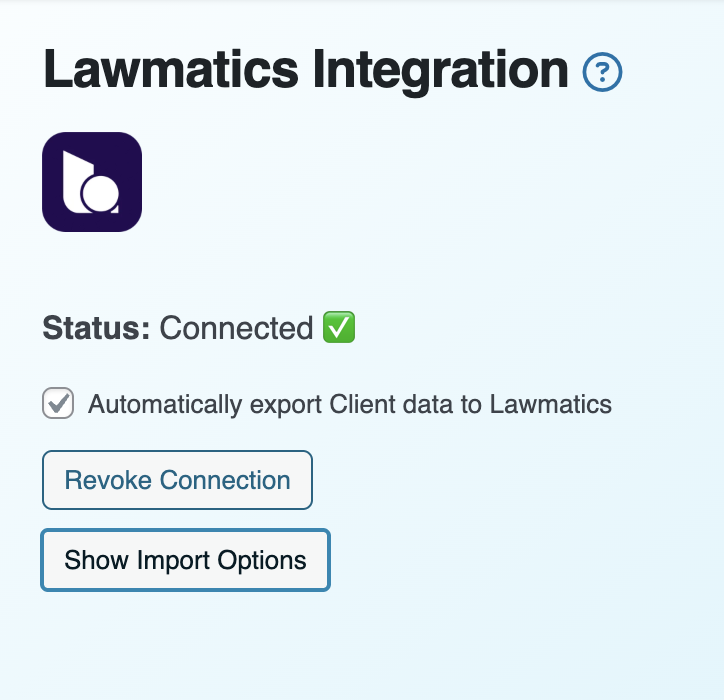


With this setting enabled, whenever a client clicks "All Done!" or "Send For Review" in Eternal Pro, their data is automatically synchronized into Lawmatics.


  • lawmatics
Was this answer helpful?

Related Articles

Lawmatics How to import clients from Lawmatics using a Zapier webhook ?

To create a Zapier webhook to import clients into Eternal Pro: Login to your Eternal Dashboard as a Super Admin user Hover on  Integrations  in the left nav menu, then...

8am MyCase How to import clients from MyCase using a webhook ?

With Eternal Pro, you can automate creation of Digital Estates directly with MyCase. Once enabled, simply create a new case in MyCase called "Digital Estate". To enable the...

Clio How to sync client intake data to Clio?

Eternal Pro integrates directly with Clio: Import from Clio to send intake forms to existing clients Import from Clio to create new digital estates for clients...

8am MyCase How to sync client intake data to 8am MyCase?

Eternal Pro integrates directly with 8am MyCase Import from MyCase to send intake forms to existing clients Import from MyCase to create new digital estates for clients...

Lawcus How to sync client intake data to Lawcus?

Eternal Pro integrates directly with Lawcus Import from Lawcus to send intake forms to existing clients Import from Lawcus to create new digital estates for clients...

Powered by WHMCompleteSolution